For those who are looking for converting video to iPod format. Would be just the thing for those who are iPodU beta testers...if they could just post their own stuff!
http://www.mac360.com/index.php/mac360/comments/righting_a_wrong_visualhub_is_a_good_buy/
Tuesday, November 28, 2006


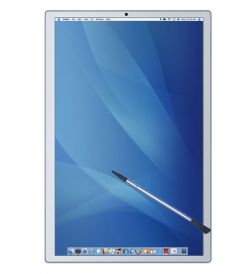
Tablet Mac incoming!
 Tablet Mac incoming!
 Apple’s prepped an ultra-smart tablet Mac, and it’ll be here in just over six months. The ultimate portable mac, and a remote for your house?...
At least two Taiwanese manufacturers are now vying for the production rights to Apple’s latest product, after the Mac maker put the finishing touches to a working prototype for its much-anticipated tablet computer.
Manufacturers Quanta and Hon Hai Precision Industry are both bidding for the new device, and have both signed confidentiality agreements over the existence of a tablet Mac.
That’s according to rumour hungry home interest websites, who say the product is now on track for a mid-2007 release.
According to the latest claims, the tablet can act as the ultimate home remote, as well as a fully functional tablet computer.
In addition to controlling iTV and other Apple products, the tablet Mac has been designed to control third party devices too. That explains Apple’s remote control patents, and its recent obsession with touch screens.
As well as handling home entertainment, the new device could also master automated lighting and security systems, including video feeds from household security cameras.
According to the Apple fans over at Smarthouse, the tablet also has applications outside the home. Presentations can be delivered using the tablet to provide source material to the presenter which differs to that on the big screen, a function already supported in Apple’s own Keynote software.
Built around Intel processors, the tablet will reportedly ship with a dedicated docking station, funnelling a signal to HDMI-enabled screens.
What’s more, we understand the docking station packs memory of its own, as well as wireless capability, so content from the tablet or other computers in the house can be sent to the big screen. If that doesn’t sound like iTV, we don’t know what does, and it would explain what plugs in to its mysterious USB socket.
Fingers crossed for more info when iTV hits the stage at Macworld 2007. Will Hon Hai Precision Industry have begun production by then? Its subsidiary Foxconn has already scooped the contract for 12 million iPhones, is the Mac tablet next?
Monday, November 27, 2006
A few great Podcasts for Mac folks
iTunes > Music Store >Podcasts
Look for the following:
Ask the Techies
by D. Lee Beard
Each week we put up new podcasts explaining the latest in cool technology from Photoshop to iPods. We specialize in multimedia and although we use Macs mostly, we do deal with windows PC issues as well.
MacCast (enhanced) For Mac Geeks, by Mac Geeks
by Adam Christianson
The enhanced AAC edition of the show for Mac Geeks by Mac Geeks. We cover everything Macintosh. Keep up to date on the latest Mac news, topics and rumors. Throw in a good dose of helpful tips and listener questions and feedback and you have MacCast. Enjoy!
ScreenCastOnline: Free Mac Video Tutorials
Video Tutorials for Mac, PC and iPod
A free video podcast which publishes weekly video tutorials demonstrating how to get the most from your Mac and the Internet.
Look for the following:
Ask the Techies
by D. Lee Beard
Each week we put up new podcasts explaining the latest in cool technology from Photoshop to iPods. We specialize in multimedia and although we use Macs mostly, we do deal with windows PC issues as well.
MacCast (enhanced) For Mac Geeks, by Mac Geeks
by Adam Christianson
The enhanced AAC edition of the show for Mac Geeks by Mac Geeks. We cover everything Macintosh. Keep up to date on the latest Mac news, topics and rumors. Throw in a good dose of helpful tips and listener questions and feedback and you have MacCast. Enjoy!
ScreenCastOnline: Free Mac Video Tutorials
Video Tutorials for Mac, PC and iPod
A free video podcast which publishes weekly video tutorials demonstrating how to get the most from your Mac and the Internet.
Apple Mac Tablet PC With Docking Station In 07
Apple Mac Tablet PC With Docking Station In 07
David Richards - Monday, 27 November 2006
Apple researchers have built a full working prototype of a Mac tablet PC and three Companies in Taiwan are now costing a product for a potential launch in mid 2007.
Sources in Taiwan have said that the focus has been more on the home and the education environment than the enterprise marketplace. Several months ago I was told that Apple was exploring a neat new device that is basically a touch screen that links to various source devices including a brand new media centre that Apple is planning to launch next year.
The Mac tablet has been designed to handle third party applications such as home automation software that will allow users to control lighting, audio, entertainment devices and security feeds. It also acts as a full blown PC has wireless linking for a new generation of Wireless Hi Fi speakers that are currently being tested by Apple.
One set of speakers which are similar in size to the small Bose speakers have been developed by an Australian Company.
Also taken into consideration was the use of the device in educational environments where presenters often want to walk around while having access to source material being presented to a screen or auditorium speakers.
The new MAC tablet has Intel processors as well as a docking station that allows the device to link to screens with HDMI input. The docking station also has additional memo0ry capability so that users can stream content to either the tablet PC or the docking station or directly to a media centre if one is being used.
During the past year Apple has lodged several touch screen patents. They have also lodged patents for wireless devices. However three patents according to sources have been lodged by third part Companies who are licensing technology to Apple.
During the last two weeks, Apple's stock price has soared to record highs, as investors bet on the success of the new iPhone which will be launched early in 2007.
On November 16, the US Patent & Trademark Office published Apple's patent application titled ‘mechanical overlay' which was originally filed in May 2005. Apple's patent relates generally to overlays for touch sensing devices. More particularly, the present invention relates to mechanical overlays that include one or more mechanical actuators that provide touch inputs to the touch sensing devices. This powerful patent provides several great examples of mechanical touch screen overlays which could be used with a future iPod, cell phone, PDA, remote control or gaming device. Furthermore, the patent provides us with a unique glimpse into how touch screens will eventually replace traditional MacBook keyboards in addition to providing users with the ability to transform the new keyboard-GUI into being a piano keyboard amongst other applications.
Quanta and Hon Hai Precision Industry are Taiwanese Companies that make notebooks and other devices for Apple. Both have signed confidentiality agreements with Apple for the Tablet Mac.
Posted by Cyndi but provided by JackWednesday, November 15, 2006
The Mac OS X Keychain
This week we have a high-quality excerpt from the new ebook, "Take
Control of Passwords in OS X," written by Joe Kissell. The blurb
reads "If you've ever found yourself confused by all the passwords
your Mac asks you for, or anxious about your level of password
security, you should read this book." So, without further ado, read
away!
The Mac OS X Keychain
by Joe Kissell
[Excerpted from "Take Control of Passwords in OS X]
Since the days of Mac OS 9, Apple has provided a systemwide
repository for each user (identified by Mac OS user name), in which
all of that person's user names and their associated passwords are
stored; this repository is called a keychain. The idea is that
instead of having to remember (and manually enter) dozens or hundreds
of user names and passwords individually, you let the keychain
remember (and enter) them for you. The keychain itself is encrypted
and protected by a password. By entering just that one password, you
unlock all the passwords inside the keychain; the system then hands
them to applications, network servers, or other resources as
necessary. Not all applications that use passwords are designed to
support the keychain, but most do.
(Although I use the word keychain in the singular - as does Mac OS X
in most cases - you can have more than one keychain. I discuss the
variety of keychains, and issues involving the use of multiple
keychains, in the full ebook.)
Whenever someone creates a user account, Mac OS X creates a keychain
named "login" for that account. (In some earlier versions of Mac OS
X, this keychain was given a name matching the user's short name -
for example, johnsmith. If you had such a keychain in the past and
either updated Mac OS X or copied your user data from one machine to
another, your current keychain may still have that name.) Normally,
this is your default keychain, and the only one you'll interact with
regularly.
Here's an example of how a keychain can work: Suppose you have two
Macs networked together, and one of them has Personal File Sharing
turned on. When you go to the other Mac, you click the Network icon
in your Finder's sidebar and the first Mac appears in the list. You
select its icon and click Connect. An authentication dialog appears.
After selecting Registered User and entering a valid user name and
password for the computer to which you're connecting, you select
Remember Password in Keychain and click Connect.
Behind the scenes, Mac OS X makes a new keychain entry containing the
address of the Mac you're connecting to and the user name and
password you need to connect to that Mac. Assuming your keychain is
unlocked, the next time the authentication dialog appears for this
server, it's already filled in; you need only click Connect. (Had you
not selected Remember Password in Keychain earlier, you would have
been presented with blank Name and Password fields to fill in manually.)
By default, your keychain password is the same as your login
password. Upon login, if your keychain is named "login" (or has the
same name as your user name) and your login password is the same as
your keychain password, your keychain is unlocked automatically. Of
course, by default, Mac OS X also logs you in automatically when you
turn on your computer. In other words, unless you change those
default settings, your keychain is unlocked every time you turn on
your computer - not a terribly secure situation! Therefore, unless
you use your computer only in a setting where other people can't
physically access it, I recommend changing your keychain password so
that it's different from your login password and turning off
automatic login.
Note that your keychain interacts with most parts of Mac OS X, but
since you can't access it until you've logged in, it can't
automatically fill in your login password or firmware password. You
can enter those passwords in your keychain manually if you want to,
simply to have a secure place to keep them.
**Choose and Set a Keychain Password** -- Because your keychain
protects all your other passwords, your keychain password should be
the strongest one you have - in other words, at least as strong as
any other password in the keychain. If your keychain password is less
secure than it should be, you can change it in either of two ways:
* Change your login password. If your keychain password is identical
to your login password, changing your login password also changes
your keychain password to match.
* Change your keychain password independently.
**Use Your Keychain Password** -- Mac OS X adds user names and
passwords to your default keychain every time you enter them when the
Remember Password in Keychain checkbox is selected. You can also add
them manually.
At login, Mac OS X tries to unlock your default keychain. If you've
created other keychains and the default keychain is not "login" (or
the one matching your user name), a prompt appears asking for the
default keychain's password.
Even if your keychain unlocks automatically at login (because its
password is the same as your login password), you can still lock or
unlock it manually at any time, in either of the following ways:
* If the Keychain ( ) menu appears in your menu bar, choose Lock
Keychain "keychain-name" (or Lock All Keychains) from that menu to
lock it; choose Unlock Keychain "keychain-name" to unlock it. If this
menu does not appear in your menu bar, you can add it.
* Open Keychain Access (in /Applications/Utilities). If the Keychains
list is not showing on the upper left in the window, click the Show
Keychains button at the bottom left. Select your keychain in this
list; then choose File > Lock Keychain "keychain-name".
You can also set a keychain to lock automatically after a given
period of inactivity, when your computer goes to sleep, or both. In
either case, Mac OS X prompts you to unlock the keychain the next
time it's required to access some resource.
Most of your interaction with your keychain will involve locking or
unlocking it, and agreeing (or not) to have various passwords stored
there. However, you can do a great deal more with your keychain using
the Keychain Access utility, which I cover in the full ebook in detail.
Purchase the entire "Take Control of Passwords in OS X" ebook here:
http://www.takecontrolbooks.com/passwords-macosx.html
See all Take Control ebooks here:
http://www.smalldog.com/takecontrol.html
Remember, when you buy a Take Control ebook from Take Control, you
will get a $5.00 coupon good for any purchase from Small Dog
Electronics!
Posted by Cyndi
Control of Passwords in OS X," written by Joe Kissell. The blurb
reads "If you've ever found yourself confused by all the passwords
your Mac asks you for, or anxious about your level of password
security, you should read this book." So, without further ado, read
away!
The Mac OS X Keychain
by Joe Kissell
[Excerpted from "Take Control of Passwords in OS X]
Since the days of Mac OS 9, Apple has provided a systemwide
repository for each user (identified by Mac OS user name), in which
all of that person's user names and their associated passwords are
stored; this repository is called a keychain. The idea is that
instead of having to remember (and manually enter) dozens or hundreds
of user names and passwords individually, you let the keychain
remember (and enter) them for you. The keychain itself is encrypted
and protected by a password. By entering just that one password, you
unlock all the passwords inside the keychain; the system then hands
them to applications, network servers, or other resources as
necessary. Not all applications that use passwords are designed to
support the keychain, but most do.
(Although I use the word keychain in the singular - as does Mac OS X
in most cases - you can have more than one keychain. I discuss the
variety of keychains, and issues involving the use of multiple
keychains, in the full ebook.)
Whenever someone creates a user account, Mac OS X creates a keychain
named "login" for that account. (In some earlier versions of Mac OS
X, this keychain was given a name matching the user's short name -
for example, johnsmith. If you had such a keychain in the past and
either updated Mac OS X or copied your user data from one machine to
another, your current keychain may still have that name.) Normally,
this is your default keychain, and the only one you'll interact with
regularly.
Here's an example of how a keychain can work: Suppose you have two
Macs networked together, and one of them has Personal File Sharing
turned on. When you go to the other Mac, you click the Network icon
in your Finder's sidebar and the first Mac appears in the list. You
select its icon and click Connect. An authentication dialog appears.
After selecting Registered User and entering a valid user name and
password for the computer to which you're connecting, you select
Remember Password in Keychain and click Connect.
Behind the scenes, Mac OS X makes a new keychain entry containing the
address of the Mac you're connecting to and the user name and
password you need to connect to that Mac. Assuming your keychain is
unlocked, the next time the authentication dialog appears for this
server, it's already filled in; you need only click Connect. (Had you
not selected Remember Password in Keychain earlier, you would have
been presented with blank Name and Password fields to fill in manually.)
By default, your keychain password is the same as your login
password. Upon login, if your keychain is named "login" (or has the
same name as your user name) and your login password is the same as
your keychain password, your keychain is unlocked automatically. Of
course, by default, Mac OS X also logs you in automatically when you
turn on your computer. In other words, unless you change those
default settings, your keychain is unlocked every time you turn on
your computer - not a terribly secure situation! Therefore, unless
you use your computer only in a setting where other people can't
physically access it, I recommend changing your keychain password so
that it's different from your login password and turning off
automatic login.
Note that your keychain interacts with most parts of Mac OS X, but
since you can't access it until you've logged in, it can't
automatically fill in your login password or firmware password. You
can enter those passwords in your keychain manually if you want to,
simply to have a secure place to keep them.
**Choose and Set a Keychain Password** -- Because your keychain
protects all your other passwords, your keychain password should be
the strongest one you have - in other words, at least as strong as
any other password in the keychain. If your keychain password is less
secure than it should be, you can change it in either of two ways:
* Change your login password. If your keychain password is identical
to your login password, changing your login password also changes
your keychain password to match.
* Change your keychain password independently.
**Use Your Keychain Password** -- Mac OS X adds user names and
passwords to your default keychain every time you enter them when the
Remember Password in Keychain checkbox is selected. You can also add
them manually.
At login, Mac OS X tries to unlock your default keychain. If you've
created other keychains and the default keychain is not "login" (or
the one matching your user name), a prompt appears asking for the
default keychain's password.
Even if your keychain unlocks automatically at login (because its
password is the same as your login password), you can still lock or
unlock it manually at any time, in either of the following ways:
* If the Keychain ( ) menu appears in your menu bar, choose Lock
Keychain "keychain-name" (or Lock All Keychains) from that menu to
lock it; choose Unlock Keychain "keychain-name" to unlock it. If this
menu does not appear in your menu bar, you can add it.
* Open Keychain Access (in /Applications/Utilities). If the Keychains
list is not showing on the upper left in the window, click the Show
Keychains button at the bottom left. Select your keychain in this
list; then choose File > Lock Keychain "keychain-name".
You can also set a keychain to lock automatically after a given
period of inactivity, when your computer goes to sleep, or both. In
either case, Mac OS X prompts you to unlock the keychain the next
time it's required to access some resource.
Most of your interaction with your keychain will involve locking or
unlocking it, and agreeing (or not) to have various passwords stored
there. However, you can do a great deal more with your keychain using
the Keychain Access utility, which I cover in the full ebook in detail.
Purchase the entire "Take Control of Passwords in OS X" ebook here:
http://www.takecontrolbooks.com/passwords-macosx.html
See all Take Control ebooks here:
http://www.smalldog.com/takecontrol.html
Remember, when you buy a Take Control ebook from Take Control, you
will get a $5.00 coupon good for any purchase from Small Dog
Electronics!
Posted by Cyndi
Wednesday, November 01, 2006
Apple Reports Preliminary Fourth Quarter Results
Apple announced preliminary fourth quarter financial results, with revenue of $4.84 billion and a net profit of $546 million, or $.62 per diluted share. These results compare to revenue of $3.68 billion and a net profit of $430 million, or $.50 per diluted share, in the year-ago quarter. Gross margin was 29.2%, up from 28.1% a year ago. International sales accounted for 40% of revenue. http://www.apple.com/pr/library/2006/oct/18results.html
posted by Cyndi
posted by Cyndi
Wall Street Journal: Boss Puts iPod to Work
“People used to hide their iPods from their bosses, if they used them in the office at all,” writes Anjali Athavaley for the Wall Street Journal. “Now the bosses are passing them out to their employees. Companies from health-care suppliers to fast-food chains are handing out free iPods so that employees can download audio and video files of CEO announcements, training courses and sales seminars.” To read complete articel go to:
http://online.wsj.com/public/article/SB116173887200102825-u6E2elCR8OOVB6LUsdyY_0RdTvs_20061101.html?mod=blogs
http://online.wsj.com/public/article/SB116173887200102825-u6E2elCR8OOVB6LUsdyY_0RdTvs_20061101.html?mod=blogs
From EPS to PDF in No Time Flat
Handy Tip : From EPS to PDF in No Time Flat
This trick is pretty much just for graphic designers who work with EPS images from applications like Adobe illustrator, Coreldraw for Mac, Freehand, and Photoshop. If you want to convert your EPS image instantly into a PDF (ideal for emailing), just drag it onto Apple’s Preview application icon in your dock (or in your Applications folder) and Mac OS X automatically converts your Postscript file to a PDF on the fly. When you choose save from the File menu, it will save as a PDF.
http://www.apple.com/pro/tips/epstopdf.html
Posted by Cyndi
This trick is pretty much just for graphic designers who work with EPS images from applications like Adobe illustrator, Coreldraw for Mac, Freehand, and Photoshop. If you want to convert your EPS image instantly into a PDF (ideal for emailing), just drag it onto Apple’s Preview application icon in your dock (or in your Applications folder) and Mac OS X automatically converts your Postscript file to a PDF on the fly. When you choose save from the File menu, it will save as a PDF.
http://www.apple.com/pro/tips/epstopdf.html
Posted by Cyndi
Interesting Article: Perfecting a Life Saving Blood Pump
Perfecting a Life-Saving Blood Pump
With the help of Apple technology, Professor Marek Behr and his team at RWTH Aachen University have helped improve a four-ounce pump to help prolong the lives of tranplant patients waiting for a heart. http://www.apple.com/science/profiles/aachen/
With the help of Apple technology, Professor Marek Behr and his team at RWTH Aachen University have helped improve a four-ounce pump to help prolong the lives of tranplant patients waiting for a heart. http://www.apple.com/science/profiles/aachen/
How to Create a Digital Signature
I found this little tip in my Wacom Tablet newsletter (http://wacom.com/index2.cfm). But I discover you can create a digital signature the same way even if you don't have a tablet, you just have to be skilled with the mouse and pen tool in photoshop. I happen to have a Wacom Tablet, so if you really want to do this it using the table, give me a call and you can use mine!!
Digital Signatures by Matt Kloskowski
“It’s really easy to create your signature with a pen tablet. Best of all, you can save it in Photoshop so you don’t have to keep redoing it. In Photoshop, just select the Brush Tool and choose a small hard-edged (the kind without the faded edges) brush from the Brush Picker in the top Options Bar. Then write your signature with the Wacom pen on a white layer just as you normally would. Once you have it the way you like, select the Rectangular Marquee Tool from the toolbox and drag a selection around the entire signature. Go to the Edit menu and go down to Define Brush Preset. Give your brush a descriptive name, press OK and you’re ready to go. That’s it! Now your signature is saved as a custom brush in the Brushes palette ready to use whenever you want.”
posted by Cyndi
Digital Signatures by Matt Kloskowski
“It’s really easy to create your signature with a pen tablet. Best of all, you can save it in Photoshop so you don’t have to keep redoing it. In Photoshop, just select the Brush Tool and choose a small hard-edged (the kind without the faded edges) brush from the Brush Picker in the top Options Bar. Then write your signature with the Wacom pen on a white layer just as you normally would. Once you have it the way you like, select the Rectangular Marquee Tool from the toolbox and drag a selection around the entire signature. Go to the Edit menu and go down to Define Brush Preset. Give your brush a descriptive name, press OK and you’re ready to go. That’s it! Now your signature is saved as a custom brush in the Brushes palette ready to use whenever you want.”
posted by Cyndi
A cool Web Browser Widget
Art's Widget of the Week
This OS X Tiger Dashboard Widget is by Dave Pedu and is called
WidgetBrowse.
It is simply a web browsing tool, for use within the Dashboard.
Here is a link to this straightforward web browsing widget tool;
http://www.apple.com/downloads/dashboard/networking_security/
widgetbrowse.html
Enjoy!
Posted by Cyndi
This OS X Tiger Dashboard Widget is by Dave Pedu and is called
WidgetBrowse.
It is simply a web browsing tool, for use within the Dashboard.
Here is a link to this straightforward web browsing widget tool;
http://www.apple.com/downloads/dashboard/networking_security/
widgetbrowse.html
Enjoy!
Posted by Cyndi
What is a Kernel Panic?
Hopefully you have never experienced a Kernel Panic, but if you do...
What is a kernel panic:
A kernel panic is an error that occurs you guessed it, in the kernel
of the system. For those not familiar with UNIX based operating
system the kernel is the core of the system and such errors tend to
be rather severe and will interrupt that game of solitaire that you
were playing. When an unexpected instruction to the processor is
received it sends you a message in a black (or grey) box telling you
to restart your computer. It also includes other languages just to
keep you in practice with the german you learned in grade 12. Some
times it gives you strings of white text with a black background
across the top of your screen.
What to do when you get one:
Unlike the name, you should not be the one panicking. Whenever a
kernel panic happens it generates a log that includes the error
message to help in diagnosing the problem. It is called Panic.log
and is found in /library/logs/ The one real benefit of this log is
it date stamps every time it happens so you can see the frequency of
it. Frequent kernel panics is a sign of a hardware issue that should
be resolved. I have had a random kernel panic in my processing of
ipods but not every kernel panic is a sign of the apocalypse as there
are many causes for a kernel panic. Simply restart and see if it
happens again.
How can you fix a kernel panic:
As I mentioned there is many causes for that pesky black box of death
(System crashes: Not just for Windows anymore). The most common (and
easiest to fix) is caused by bad ram. One of the first steps in
isolating the problem is to take out any 3rd party ram and swap for
good ram. Also, disconnect peripherals such as that used ipod you
bought on ebay. A kernel panic at startup could be a sign that there
are bad sectors on your hard drive. If the system can boot off a CD
or an external drive you isolated it to the hard drive. If ram,
peripherals, and the hard drive are all ruled out the logic board is
the culprit and that is a pesky repair in your future.
Thanks to Todd@smalldog.com for this information
Posted by Cyndi
What is a kernel panic:
A kernel panic is an error that occurs you guessed it, in the kernel
of the system. For those not familiar with UNIX based operating
system the kernel is the core of the system and such errors tend to
be rather severe and will interrupt that game of solitaire that you
were playing. When an unexpected instruction to the processor is
received it sends you a message in a black (or grey) box telling you
to restart your computer. It also includes other languages just to
keep you in practice with the german you learned in grade 12. Some
times it gives you strings of white text with a black background
across the top of your screen.
What to do when you get one:
Unlike the name, you should not be the one panicking. Whenever a
kernel panic happens it generates a log that includes the error
message to help in diagnosing the problem. It is called Panic.log
and is found in /library/logs/ The one real benefit of this log is
it date stamps every time it happens so you can see the frequency of
it. Frequent kernel panics is a sign of a hardware issue that should
be resolved. I have had a random kernel panic in my processing of
ipods but not every kernel panic is a sign of the apocalypse as there
are many causes for a kernel panic. Simply restart and see if it
happens again.
How can you fix a kernel panic:
As I mentioned there is many causes for that pesky black box of death
(System crashes: Not just for Windows anymore). The most common (and
easiest to fix) is caused by bad ram. One of the first steps in
isolating the problem is to take out any 3rd party ram and swap for
good ram. Also, disconnect peripherals such as that used ipod you
bought on ebay. A kernel panic at startup could be a sign that there
are bad sectors on your hard drive. If the system can boot off a CD
or an external drive you isolated it to the hard drive. If ram,
peripherals, and the hard drive are all ruled out the logic board is
the culprit and that is a pesky repair in your future.
Thanks to Todd@smalldog.com for this information
Posted by Cyndi
Friday, October 13, 2006
Are you sick of the same old PowerPoint and Keynote Backgrounds and Templates?
Are you sick of the same old PowerPoint and Keynote Backgrounds and Templates?
Well I was and I don't even use them a ton. I stumbled on to
 for Keynote� and PowerPoint? (Only 39.99). It's time to wake up your audience!
Well I was and I don't even use them a ton. I stumbled on to
for Keynote� and PowerPoint? (Only 39.99). It's time to wake up your audience! Create a captivating message using powerful new PowerPoint� or Keynote� templates and backgrounds that add stylistic appeal to your outdated slides. Unique progressive backgrounds visually outline any presentation, leading your audience through the message in a dazzling time-lapsed slide progression.
Choose from over 600 included backgrounds, or 100 full slide templates already formatted with fonts, text and image layouts.
http://www.macxware.com/candypress/Scripts/prodView.asp?idproduct=63
Lots of other cool products, found a great screen capture Progam too called MacCapture. Posted by Cyndi Danner-Kuhn
Google & Apple Sitting In A Tree...
Google & Apple Sitting In A Tree...
By Ed@Smalldog.com
Google and Apple are getting awfully cozy these days. A few years
ago, Google's support for Macs and OS X was rather paltry. As Mac
users complained about this, Google added a few Apple-friendly
features. For example, you could go to google.com/mac.html to
constrain your search results to Mac sites - useful for finding
arcane Mac info. However, many of Google's services and software,
like Google Earth simply didn't work on a Mac. This despite the fact
that a huge number of Google employees reportedly use Macs every day
on the job.
In the past year, Google and Apple have moved much closer together.
Dr. Eric Schmidt, Google's influential CEO, joined Apple's board of
directors in August. He said "Apple is one of the companies in the
world that I most admire."
Google has expanded the google.com/mac.html site with six
downloadable software apps - including the powerful Google Earth and
SketchUp (we used SketchUp for the layout of our new retail store.)
Google's free web-based productivity apps, Docs & Spreadsheets work
well on a Mac, as long you're using Firefox, Camino or Mozzilla (but
not Safari.) Calendar, Gmail, and Google video all work well with
Safari, but Google Talk and Page Creator do not (again, you need
Firefox, Camino or Mozzilla.) At Small Dog, we use Google Analytics
and Adwords extensively.
Now Google is keeping an official Mac-centric blog, which you can see
here:
http://googlemac.blogspot.com
Google's Mac blog reads:
appears to have code that could allow for geotagging via Google Maps.
Google and Apple are rumored to be working on making Google Video
available via iTV. That could be great for Apple and iTV users,
especially now that Google has purchased YouTube.
Both Apple and Google operate as innovative, entrepreneurial
companies. It's great for Apple to have such a powerful ally. And
it's great for Google to have a creative, differently thinking partner.
By Ed@Smalldog.com
Google and Apple are getting awfully cozy these days. A few years
ago, Google's support for Macs and OS X was rather paltry. As Mac
users complained about this, Google added a few Apple-friendly
features. For example, you could go to google.com/mac.html to
constrain your search results to Mac sites - useful for finding
arcane Mac info. However, many of Google's services and software,
like Google Earth simply didn't work on a Mac. This despite the fact
that a huge number of Google employees reportedly use Macs every day
on the job.
In the past year, Google and Apple have moved much closer together.
Dr. Eric Schmidt, Google's influential CEO, joined Apple's board of
directors in August. He said "Apple is one of the companies in the
world that I most admire."
Google has expanded the google.com/mac.html site with six
downloadable software apps - including the powerful Google Earth and
SketchUp (we used SketchUp for the layout of our new retail store.)
Google's free web-based productivity apps, Docs & Spreadsheets work
well on a Mac, as long you're using Firefox, Camino or Mozzilla (but
not Safari.) Calendar, Gmail, and Google video all work well with
Safari, but Google Talk and Page Creator do not (again, you need
Firefox, Camino or Mozzilla.) At Small Dog, we use Google Analytics
and Adwords extensively.
Now Google is keeping an official Mac-centric blog, which you can see
here:
http://googlemac.blogspot.com
Google's Mac blog reads:
We want to provide great products and services to the tens of millions of Mac users around the world, because it's the right thing to do, and because Mac users inside and outside Google demand it. That's why we've recruited some of theThere are also hints of much deeper future collaboration. iPhoto 6
best, most passionate Mac people out there for a Mac Engineering team
appears to have code that could allow for geotagging via Google Maps.
Google and Apple are rumored to be working on making Google Video
available via iTV. That could be great for Apple and iTV users,
especially now that Google has purchased YouTube.
Both Apple and Google operate as innovative, entrepreneurial
companies. It's great for Apple to have such a powerful ally. And
it's great for Google to have a creative, differently thinking partner.
Easy Maintenance - Clear that Desktop!
Easy Maintenance - Clear that Desktop!
By Ed@Smalldog.com
Did you know that having many folders, images, old installers, and
other files on your OS X desktop can cramp your Mac’s performance,
including start-up time? This is because Desktop images are treated
like dynamic windows, rather than static images.
Ideally, the OS X Desktop should only be used for temporary, short
term storage. It’s best to keep all your files stored in their proper
locations, as much a possible – documents in the Documents folder,
photos and images in iPhoto or the Pictures folder, etc.
You can keep a junk folder in your Home Directory, or Documents
folder, where you simply stash everything. You can drag that junk
folder into your Dock, where it is always easily accessible.
There are a number of freeware and shareware apps to help you keep a
clean desktop – Tinker Tools (http://www.macupdate.com/info.php/id/13662) and sterCleanDesk (http://www.macupdate.com/info.php/id/16481) are examples.
Now, go clean your room!
Posted by Cyndi Danner-Kuhn
By Ed@Smalldog.com
Did you know that having many folders, images, old installers, and
other files on your OS X desktop can cramp your Mac’s performance,
including start-up time? This is because Desktop images are treated
like dynamic windows, rather than static images.
Ideally, the OS X Desktop should only be used for temporary, short
term storage. It’s best to keep all your files stored in their proper
locations, as much a possible – documents in the Documents folder,
photos and images in iPhoto or the Pictures folder, etc.
You can keep a junk folder in your Home Directory, or Documents
folder, where you simply stash everything. You can drag that junk
folder into your Dock, where it is always easily accessible.
There are a number of freeware and shareware apps to help you keep a
clean desktop – Tinker Tools (http://www.macupdate.com/info.php/id/13662) and sterCleanDesk (http://www.macupdate.com/info.php/id/16481) are examples.
Now, go clean your room!
Posted by Cyndi Danner-Kuhn
Saturday, September 09, 2006
ThinkMac: Great Site and Podcast too!!!
Mac users: ThinkMac.net: smarter, happier and better looking!!
http://www.thinkmac.net/blog/


Check this out, both the website and the Podcast in iTunes!! Quick tips to enhance the user experience of Mac OSX TIger! Providing Tips to new Mac users and Mac Geeks around the World.
Posted by Cyndi Danner-Kuhn
http://www.thinkmac.net/blog/
Podcast
Check this out, both the website and the Podcast in iTunes!! Quick tips to enhance the user experience of Mac OSX TIger! Providing Tips to new Mac users and Mac Geeks around the World.
Posted by Cyndi Danner-Kuhn
Save Internet Freedom, Support Net Neutrality
Save Internet Freedom, Support Net Neutrality
By Don@Smalldog.com
I was recently a speaker at a press conference in support of net
neutrality. We joined a coalition of groups to lobby Vermont Senator
Jeffords to actively support net neutrality in the telecommunications
bill coming up to the Senate this month. The senator came out in
favor of net neutrality last night, and we presented him with
petitions and held the press conference to encourage his support.
Vermont’s other Senator, Patrick Leahy, has been a net neutrality
supporter from the beginning. This is one of the few times that I
stood up with the ACLU, Vermont Public Interest Group, and groups
such as the Christian Coalition and the National Gun Owners
association to talk about a public policy issue. This is a vitally
important issue that you should be aware of and talk about with your
senators, too. More information is available at:
http://www.savetheinternet.com/
The current telecommunications bill does not have protection for the
concept of net neutrality included in the legislation. At the urging
of a handful of telecommunications companies — namely, Verizon,
Comcast, Bell South, and AT&T — the legislation would allow these
very same internet "gatekeepers" to charge different rates for
different levels of access to the net. This would mean that the
larger companies could and would pay for faster page-loads and
preferred access while smaller companies, bloggers, and others may be
left with slow access or no access. The internet has been the most
free common ground for communications in the history of humanity. A
small company in the middle of nowhere with some good web-design
skills can look as good and provide the same goods and services as a
company that is much larger. With a tiered internet, that new
entrepreneur might be locked out of her new venture because she
cannot afford the extra fees for the higher level of access.
The impact upon bloggers, news sites, and a free press is even more
troublesome. An aggressive ISP might price these grassroots
newsgroups and bloggers out of the market or even make it so their
pages load so slowly that they are unusable. The only ones advocating
for overturning the status quo of a free, neutral net are those same
large telecommunications companies that want to make more money and
exercise more control over the content on the net. Some of the very
companies that could afford to pay these higher fees to gain faster
access are the most vociferous supporters of net neutrality.
Companies like Microsoft, Amazon, and Google could easily pay to be
in the upper tier but have been very vocal and active in supporting a
free internet. They do not see any benefit to allowing Comcast,
Verizon, and Bell South to control internet content or speed.
Small Dog Electronics was born on the internet. The company was a
gleam in my eye and operated out of my living room and garage for the
first year of operation. We never would have had the success we have
achieved from the boonies in the Green Mountains without net
neutrality. It is a concept that is near and dear to us and one that
we will continue to support with our public voice and our votes.
How do you feel about net neutrality? Share your opinion at the Small
Dog Soapbox:
http://www.smalldog.com/PHPbb/viewforum.php?f=1
Posted by Cyndi Danner-Kuhn
By Don@Smalldog.com
I was recently a speaker at a press conference in support of net
neutrality. We joined a coalition of groups to lobby Vermont Senator
Jeffords to actively support net neutrality in the telecommunications
bill coming up to the Senate this month. The senator came out in
favor of net neutrality last night, and we presented him with
petitions and held the press conference to encourage his support.
Vermont’s other Senator, Patrick Leahy, has been a net neutrality
supporter from the beginning. This is one of the few times that I
stood up with the ACLU, Vermont Public Interest Group, and groups
such as the Christian Coalition and the National Gun Owners
association to talk about a public policy issue. This is a vitally
important issue that you should be aware of and talk about with your
senators, too. More information is available at:
http://www.savetheinternet.com/
The current telecommunications bill does not have protection for the
concept of net neutrality included in the legislation. At the urging
of a handful of telecommunications companies — namely, Verizon,
Comcast, Bell South, and AT&T — the legislation would allow these
very same internet "gatekeepers" to charge different rates for
different levels of access to the net. This would mean that the
larger companies could and would pay for faster page-loads and
preferred access while smaller companies, bloggers, and others may be
left with slow access or no access. The internet has been the most
free common ground for communications in the history of humanity. A
small company in the middle of nowhere with some good web-design
skills can look as good and provide the same goods and services as a
company that is much larger. With a tiered internet, that new
entrepreneur might be locked out of her new venture because she
cannot afford the extra fees for the higher level of access.
The impact upon bloggers, news sites, and a free press is even more
troublesome. An aggressive ISP might price these grassroots
newsgroups and bloggers out of the market or even make it so their
pages load so slowly that they are unusable. The only ones advocating
for overturning the status quo of a free, neutral net are those same
large telecommunications companies that want to make more money and
exercise more control over the content on the net. Some of the very
companies that could afford to pay these higher fees to gain faster
access are the most vociferous supporters of net neutrality.
Companies like Microsoft, Amazon, and Google could easily pay to be
in the upper tier but have been very vocal and active in supporting a
free internet. They do not see any benefit to allowing Comcast,
Verizon, and Bell South to control internet content or speed.
Small Dog Electronics was born on the internet. The company was a
gleam in my eye and operated out of my living room and garage for the
first year of operation. We never would have had the success we have
achieved from the boonies in the Green Mountains without net
neutrality. It is a concept that is near and dear to us and one that
we will continue to support with our public voice and our votes.
How do you feel about net neutrality? Share your opinion at the Small
Dog Soapbox:
http://www.smalldog.com/PHPbb/viewforum.php?f=1
Posted by Cyndi Danner-Kuhn
Make Multiple iPhoto Libraries and iPohot File Structure
Make Multiple iPhoto Libraries or Make an iPhoto Library on an
External Hard Drive
By Ed@Smalldog.com
With iPhoto 5 and 6, it's very easy to create and maintain multiple
iPhoto libraries. You might do this to keep separate personal and
business iPhoto libraries, or to keep one iPhoto library installed on
your computer's hard drive and a separate iPhoto library installed on
an external drive.
To create a new iPhoto 5 or 6 library, click on the orange iPhoto
icon and then quickly hold down the Option key. You will be prompted
to choose an iPhoto library or to create a new library. If you create
a new library and you want to switch back to the old iPhoto library,
simply hold down the Option key again when launching iPhoto.
You can also download a great shareware program called iPhoto buddy
to manage multiple iPhoto libraries. iPhoto buddy makes it very easy
to do this. You can read about it and download it here:
http://www.iphotobuddy.com/
On the iPhoto File Structure
I could condense all my iPhoto wisdom in one sentence: for your own
benefit, please never, ever open the iPhoto folder library folder and
move files around. That's it. This is because iPhoto has to maintain
a very strict inventory of its data. The data structure is explained
here:
http://www.iphotolibrarymanager.com/Documentation/iPLM/pgs/
libraryfolder.html
There really is no reason for the vast majority of users to ever open
their iPhoto library folder. That includes me!
Posted by Cyndi Danner-Kuhn
External Hard Drive
By Ed@Smalldog.com
With iPhoto 5 and 6, it's very easy to create and maintain multiple
iPhoto libraries. You might do this to keep separate personal and
business iPhoto libraries, or to keep one iPhoto library installed on
your computer's hard drive and a separate iPhoto library installed on
an external drive.
To create a new iPhoto 5 or 6 library, click on the orange iPhoto
icon and then quickly hold down the Option key. You will be prompted
to choose an iPhoto library or to create a new library. If you create
a new library and you want to switch back to the old iPhoto library,
simply hold down the Option key again when launching iPhoto.
You can also download a great shareware program called iPhoto buddy
to manage multiple iPhoto libraries. iPhoto buddy makes it very easy
to do this. You can read about it and download it here:
http://www.iphotobuddy.com/
On the iPhoto File Structure
I could condense all my iPhoto wisdom in one sentence: for your own
benefit, please never, ever open the iPhoto folder library folder and
move files around. That's it. This is because iPhoto has to maintain
a very strict inventory of its data. The data structure is explained
here:
http://www.iphotolibrarymanager.com/Documentation/iPLM/pgs/
libraryfolder.html
There really is no reason for the vast majority of users to ever open
their iPhoto library folder. That includes me!
Posted by Cyndi Danner-Kuhn
Are you a Star Trek: New Voyages Fan?
A G5 for the 24th Century!
By Ed@Smalldog.com
A couple of weeks ago, Don Mayer received an email with the
intriguing subject, "A G5 for the 24th Century?" The email was from
Charles Root of Retro Film Studios, best known for their highly
regarded and hugely popular web-based series Star Trek: New Voyages.
If you are a Star Trek fan or simply a fan of great web-based movies,
you've probably heard of New Voyages. For everyone else, New Voyages
is a highly regarded, broadcast-quality, fan-created series set in
the Star Trek universe, focusing on the fourth year of the Starship
Enterprise's five-year mission. It is distributed on the web for
free. Episodes produced so far include the pilot, "Come What May,"
followed by "In Harm's Way." "To Serve All My Days" will be released
on September 8, 2006, at the Star Trek 40th Anniversary Gala
Celebration & Conference. Two more episodes are in preproduction:
"All The World and Time" and "The World Above, The Sky Below."
According the the New Voyages website, the idea of the series
originated with James Cawley. He had already assembled a large
collection of Star Trek set pieces and props, and had even built an
extremely impressive set based on the original Starship Enterprise
bridge. He had an idea to make a fan film, and with input from
director Jack Marshall, the series was set to launch.
New Voyages has attracted great interest from Star Trek alumni. "In
Harm's Way" featured Eugene Roddenberry, Jr. as a consulting
producer. The excellent special effects are handled by Max Rem, who
also worked on the Enterprise television series. Several writers from
various Trek series have pitched in as writers and even actors. The
next episode, "To Serve All My Days," was written by D.C. Fontana.
Indeed, "To Serve All My Days" will feature Walter Koenig in his
famous original role of Pavel Chekov — truly amazing for a web-based
series. George Takei will return as Sulu in the next episode, set to
begin shooting in September.
The New Voyages website proudly declares "STAR TREK LIVES!" Some of
the actors may only vaguely resemble the original cast, but the sets,
music, costumes and uniforms, and alien makeup seem as if they were
beamed from the late 1960s to the present day. It feels like a bona
fide, CBS-produced Star Trek TV series. Indeed, most of the effects
(especially space and ship scenes) are superior to the effects in the
original series.
New Voyages has the pioneering spirit of the original Star Trek
series. In real life, New Voyages is comprised of a diverse crew
working toward a combined goal. Charles Root, who sent the original
email to Small Dog, plays Mr. Scott. The other recurring cast
includes James Cawley as Captain Kirk, Jeff Quinn as Mr. Spock, John
Kelly as Doctor Leonard McCoy, Andy Bray as Lt. Pavel Chekov, John
Lim as Lt. Cmdr. Hikaru Sulu, Julienne Irons as Lt. Nyota Uhura, Ron
Boyd as Lt. Vincent Desalle, Shannon Giles as Nurse Christine Chapel,
and Katrina Kernodle as Yeoman Janice Rand. James Lowe, who is a Co-
Producer/Art Director and Website Co-Administrator (and also plays an
alien Federation Ambassador) wrote in with links to some pictures
(all photos are property of Star Trek New Voyages):
http://www.startreknewvoyages.com/files/j-lo/sfm/album/
Effects and editing for New Voyages happen on of a variety of
computers and in a variety of software packages. Previous episodes
were cut on Adobe Premiere, with ship animation created in Lightwave.
Other post effects were added with Adobe After Effects. Some
rotoscoping and additional visual effects were done in Combustion.
Apple's Motion program might be used for some of this in the future.
Previously, some editing was done on a G3, which simply could not
keep up with production. Small Dog Electronics loaned New Voyages a
2.3 GHz Power Mac G5 to finish the current episode, "To Serve All My
Days," with Walter Koenig, which premiers September 8 at the Star
Trek: 40th Anniversary Gala Celebration & Conference at the Science
Fiction Museum in Seattle.
It is important to remember that the creators, cast, and crew of New
Voyages do not profit from its production. The best way to donate is
through gift cards from the retailers they buy supplies from. You can
also contact them with other ideas.
Successful, incredibly popular productions blending professional
knowhow, digital "prosumer" equipment, and amateur enthusiasm are
uprooting the traditional movie creation and distribution model. If
you want to see the future of media on the internet, visit New
Voyages here:
http://www.startreknewvoyages.com/1024/home.php
Posted by Cyndi Danner-Kuhn
By Ed@Smalldog.com
A couple of weeks ago, Don Mayer received an email with the
intriguing subject, "A G5 for the 24th Century?" The email was from
Charles Root of Retro Film Studios, best known for their highly
regarded and hugely popular web-based series Star Trek: New Voyages.
If you are a Star Trek fan or simply a fan of great web-based movies,
you've probably heard of New Voyages. For everyone else, New Voyages
is a highly regarded, broadcast-quality, fan-created series set in
the Star Trek universe, focusing on the fourth year of the Starship
Enterprise's five-year mission. It is distributed on the web for
free. Episodes produced so far include the pilot, "Come What May,"
followed by "In Harm's Way." "To Serve All My Days" will be released
on September 8, 2006, at the Star Trek 40th Anniversary Gala
Celebration & Conference. Two more episodes are in preproduction:
"All The World and Time" and "The World Above, The Sky Below."
According the the New Voyages website, the idea of the series
originated with James Cawley. He had already assembled a large
collection of Star Trek set pieces and props, and had even built an
extremely impressive set based on the original Starship Enterprise
bridge. He had an idea to make a fan film, and with input from
director Jack Marshall, the series was set to launch.
New Voyages has attracted great interest from Star Trek alumni. "In
Harm's Way" featured Eugene Roddenberry, Jr. as a consulting
producer. The excellent special effects are handled by Max Rem, who
also worked on the Enterprise television series. Several writers from
various Trek series have pitched in as writers and even actors. The
next episode, "To Serve All My Days," was written by D.C. Fontana.
Indeed, "To Serve All My Days" will feature Walter Koenig in his
famous original role of Pavel Chekov — truly amazing for a web-based
series. George Takei will return as Sulu in the next episode, set to
begin shooting in September.
The New Voyages website proudly declares "STAR TREK LIVES!" Some of
the actors may only vaguely resemble the original cast, but the sets,
music, costumes and uniforms, and alien makeup seem as if they were
beamed from the late 1960s to the present day. It feels like a bona
fide, CBS-produced Star Trek TV series. Indeed, most of the effects
(especially space and ship scenes) are superior to the effects in the
original series.
New Voyages has the pioneering spirit of the original Star Trek
series. In real life, New Voyages is comprised of a diverse crew
working toward a combined goal. Charles Root, who sent the original
email to Small Dog, plays Mr. Scott. The other recurring cast
includes James Cawley as Captain Kirk, Jeff Quinn as Mr. Spock, John
Kelly as Doctor Leonard McCoy, Andy Bray as Lt. Pavel Chekov, John
Lim as Lt. Cmdr. Hikaru Sulu, Julienne Irons as Lt. Nyota Uhura, Ron
Boyd as Lt. Vincent Desalle, Shannon Giles as Nurse Christine Chapel,
and Katrina Kernodle as Yeoman Janice Rand. James Lowe, who is a Co-
Producer/Art Director and Website Co-Administrator (and also plays an
alien Federation Ambassador) wrote in with links to some pictures
(all photos are property of Star Trek New Voyages):
http://www.startreknewvoyages.com/files/j-lo/sfm/album/
Effects and editing for New Voyages happen on of a variety of
computers and in a variety of software packages. Previous episodes
were cut on Adobe Premiere, with ship animation created in Lightwave.
Other post effects were added with Adobe After Effects. Some
rotoscoping and additional visual effects were done in Combustion.
Apple's Motion program might be used for some of this in the future.
Previously, some editing was done on a G3, which simply could not
keep up with production. Small Dog Electronics loaned New Voyages a
2.3 GHz Power Mac G5 to finish the current episode, "To Serve All My
Days," with Walter Koenig, which premiers September 8 at the Star
Trek: 40th Anniversary Gala Celebration & Conference at the Science
Fiction Museum in Seattle.
It is important to remember that the creators, cast, and crew of New
Voyages do not profit from its production. The best way to donate is
through gift cards from the retailers they buy supplies from. You can
also contact them with other ideas.
Successful, incredibly popular productions blending professional
knowhow, digital "prosumer" equipment, and amateur enthusiasm are
uprooting the traditional movie creation and distribution model. If
you want to see the future of media on the internet, visit New
Voyages here:
http://www.startreknewvoyages.com/1024/home.php
Posted by Cyndi Danner-Kuhn
Friday, September 01, 2006
Your Windows Applications, Seamlessly Integrated on Mac OS X
 Codeweavers Releases Beta of Crossover Mac
By Don@Smalldog.com
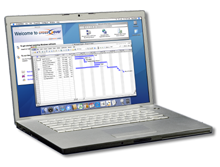
You have heard of Parallels and Boot Camp but Codeweavers solution for Windows applications is even neater. Basically CrossOver Mac will allow you to run COMPATIBLE Windows applications without having to own Windows! There are now over 2000 Windows applications that will simply just run in OS X. You'll need an Intel-based Mac and 120 MB of free hard drive space but this is an exciting development that might be the answer for many of us that only occasionally want to run a Windows app. CrossOver Mac allows you to install your favorite Windows applications and games on Mac OS X. CrossOver includes an easy to use, single click interface, which makes installing Windows software simple and fast. Once installed, your application integrates seamlessly in OS X. Just click and run your application directly from
the OS X Finder. Clicking a Windows file or document - including email attachments - will launch the appropriate Windows program, allowing you to work on the files. Best of all you do it without needing a Microsoft operating system license.
This product will be about $60 when it is released but you can download the beta now and check out the long list of compatible applications. I do not own many Windows applications so I'd appreciate a first-hand review from any of you that do and I'll include it in our next issue of Kibbles & Bytes!
http://www.codeweavers.com/products/cxmac/
If you are lucky enough to have one of the new Intel Mac, you can even download a FREE Beta version right now and give it a try. Cyndi Danner-Kuhn
Subscribe to:
Posts (Atom)

